08.18 Summary and Homework Copy
1. Setting up coordinates in Archicad:
2. Setting up coordinates in Tekla Structures
08.18 – Challenge 1
In this task, you are going to add a few new elements to the Revit template by yourself. This challenge intends to check if you understand the concepts that I mentioned in this module.
1. First, download this template file as a starting point – Download
Then, one by one, start adding more elements to this template in accordance with the guidelines given below.
1. Please provide the following information to the template:
– Project name: Test-Hospital-Template
– Project number: 103-xx-xx-3
– Project adress: 56 Sunset blvd, Missouri 63132, USA
– Project status: Construction development
– Client name: BBC course
– BIM Coordinator: – Put your name there 🙂
2. Adjust snap increment as follows:
– Length: 200mm, 100mm, 50mm, 5mm, 1mm
– Angle: 90, 45, 30, 5, 1
3. Adjust project units as follows:
– Length – m
– Area – m2
– Volume – m3
– Current – KiloAmpers – kA
Please add additional parameters to the template. Set them as Instance parameters:
1. Name: BBC_FireRating | Discipline: Common | Type of Param: Text | Group: Identity data | Categories: walls and doors
2. Name: BBC_StatusCode | Discipline: Common | Type of Param: Text | Group: Identity data | Categories: all
Add the following line patterns to the template:
1. Name: BBC_Dash – 5-5 | Pattern: Dash 5 mm, Space 5mm,
2. Name: BBC_Dash_Dot | Pattern: Dash 10mm, Space 5mm, Dash 1mm, Space 5mm
3. Name: BBC_Grid | Pattern: Dash 12mm, Space 3mm, Dash 3mm, Space 3mm
Add the following line styles to the template:
1. BBC_Solid_Green – Color: green | Line weight: 3 | Line pattern: Solid
2. BBC_Grid – Color: black | Line weight: 3 | Line pattern: BBC_Grid
3. BBC_Dash-Grey – Color: RGB 128-128-128| Line weight: 5 | Line pattern: BBC_Dash
Add the following text types to the template:
- Name: BBC_5mm_Inter | Text Font: Inter | Text size: 5 mm | Color: black
- Name: BBC_Legend_Bold | Text Font: Arial | Text size: 7 mm | Color: black | Bold | Width factor: 1.5
Please add the following object styles to the template:
- For all Window elements: Line Weight Cut: 6
- For all Door and Wall elements: Line Color: RGB 000-127-000 | Line Weight Cut: 4
Add following dimension types to the template:
- Name: BBC_Diagonal_5mm_Inter | Linewight: 2 | Text: Bold | Text Font: Inter | Text offset: 2mm | Text size: 5mm
- Name: BBC_Linear_3mm_Arial | Linewight: 1 | Leader Type: Arc | Text Font: Arial | Text offset: 1,5 mm | Text size: 3mm | Show Leader: Arrow 30 Degree
Add the following fill patterns to the template:
- Name: BBC_Crosshatch | Type: Basic | Settings: Crosshatch | Angle 45 degree | Line spacing 1 and 2: 5 mm
- Name: BBC_Stone | Type: Custom |
Find a stone hatch pattern on the www.cadhatch.com website called, “HSTON1E0”. Use it to create this pattern. Remember to change the scale of this pattern, so it’s visible in the preview.
- Create a BBC_View as an organization scheme for your Project Browser for Views
- In that scheme as a grouping and sorting method set the first parameter as: BBC_View_Type and then BBC_View_Folder
- Organize views by BBC_View schema
- Create a copy of the 3D “IFC Export” view, and call it “Navisworks Export”.
- Group it properly using BBC_View_Type: EXPORT and then BBC_View_Folder: 03 NAVIS EXPORT, parameters
- Create a BBC_Sheet as organization scheme for your Project Browser for Sheets
- In that scheme as a grouping and sorting method set the first parameter as: BBC_Sheet_Sorting
- Organize sheets by BBC_Sheet schema.
- Put two unnamed sheets which are in the file, under proper sheet sorting categories.
Tip: Check sheet number to find a proper sorting group.
08.18 – Challenge 2
This task aims to check if you know how to set three disciplinary models correctly according to shared coordinates.
Tip: Follow the instructions from lesson 08.17 to get the job done correctly.
All files needed for this task you can download here – Download.
A few preparations, before you start the task. Please do the following:
1. Open the structural model – 08.18 – STR_model.
2. Open Floor Plans – Level 1 view. The project base point of this model is positioned 5m from the intersection of the L1 and LA axes as shown in the figure.
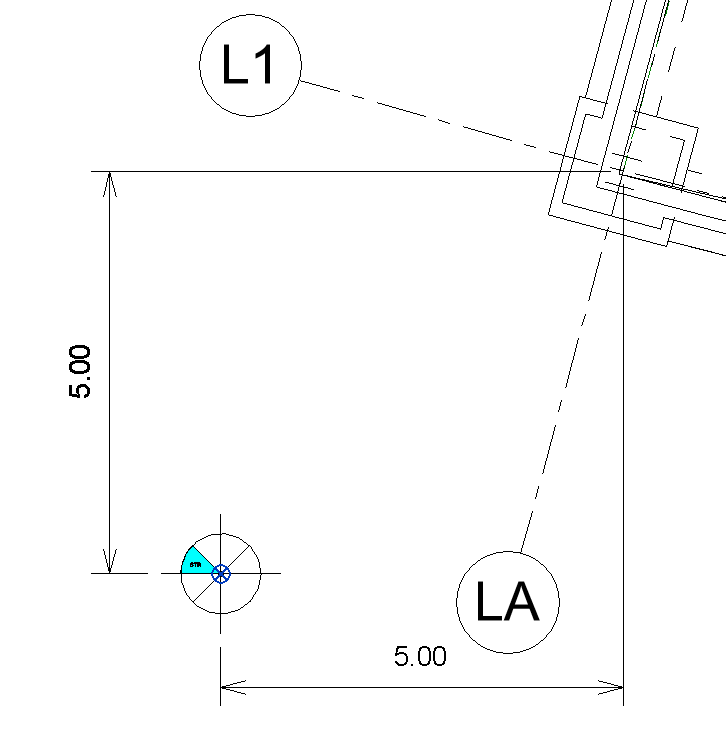
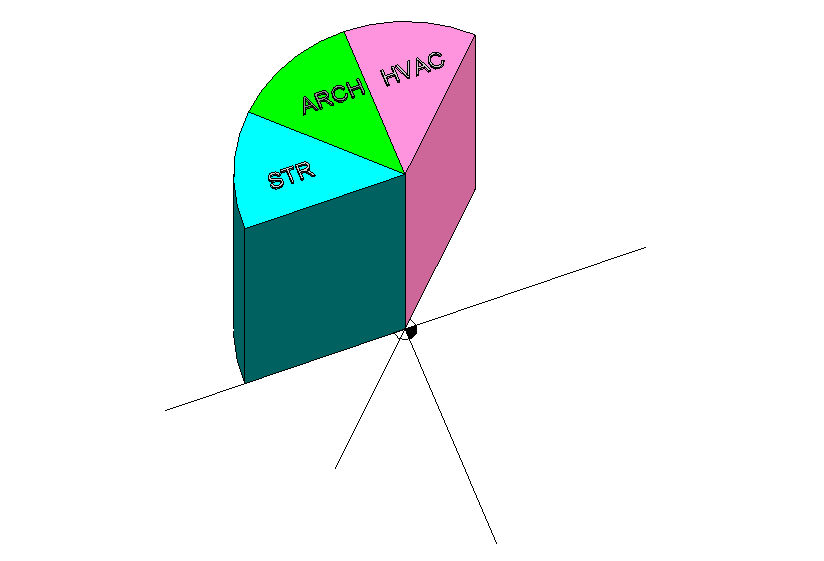
3. At this point, the BBC_Project_Origin Revit family is placed. Its type is set to STRUCTURAL according to the discipline of the model.
Now, here is your challenge. Do the following:
1. Create a shared site in 08.18 – STR_model file called: BBC_Shared
2. Set up Project base point in the structural model in the following coordinates:
a. N / S: 2345.764
b. E / W: -67.123
c. Elevation: 45.3
d. Rotation to True North: 26 ° 54 ’00 “to East
3. You need to make sure that 08.18 – HVAC_model, 08.18 – ARC_model share the same coordinates as 08.18 – STR_model and use the shared site: BBC_Shared
4. HVAC model and ARC model need to have their own BBC_Project_Origin family placed correctly 5m from the intersection of axes LA and L1 as the STR model has.
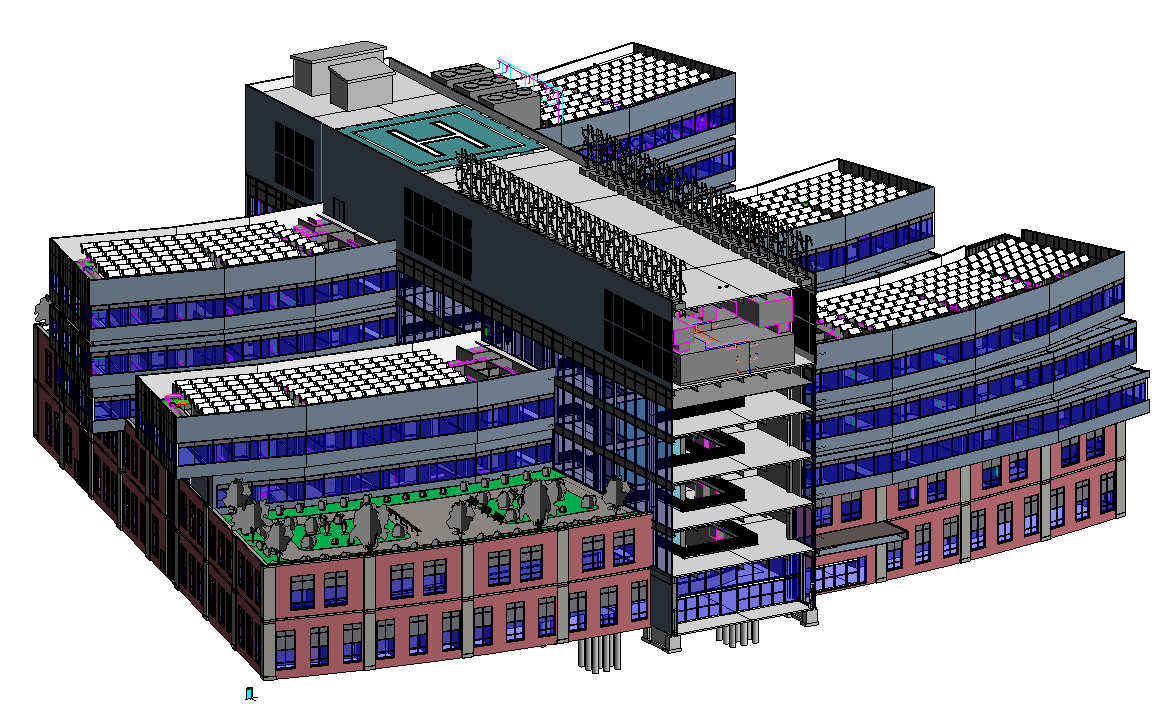
5. The final result of this exercise is to place STR, ARC, and HVAC models correctly in relation to each other. Their BBC_Project_Origin family pieces are also placed correctly to each other in coordinates that are specified in point 2.
6. Here in the picture you see how the final result should look like:
Challenge 2 – Solution
Here is a video that explains how to solve this challenge
REMEMBER – IF YOU HAVE ANY DIFFICULTIES WITH THESE CHALLENGES, GO TO OUR COMMUNITY GROUP AND WRITE THERE A POST EXPLAINING WHAT YOU DON’T UNDERSTAND. THIS IS THE FASTEST WAY TO GET HELP FROM ME (IGNACY  ) AND FROM OTHER BBC STUDENTS. GOOD LUCK.